Here’s your 1-2-3 guide to revolutionizing your trip planning with Google My Maps. You’ll never look at roads, campgrounds, and destinations the same way again. Drop that pin.
“Oh, man! Why didn’t we stop by? We drove right past them!”
For the first few years of our truck camping adventures, we planned trips based purely on destinations, jumping from one factory to another and stopping at national parks and other attractions along the way.
That worked until we remembered a reader had invited us to visit just a few miles off the route we had just taken. We missed them simply because we didn’t know they were there.
And it kept happening; missed campgrounds recommended by readers, incredible calendar contest locations, and events we could have attended. We passed these opportunities over and over like ships passing in the night.
Then we saw a map someone had shared online with their favorite camping spots. The lightbulb went off. We could make our own. Two hours later, we had a Google My Map filled with over a hundred must-see campsites and destinations across the United States and Canada.
Today, our map has over 5,000 pins that are color-coded, icon-tagged, and layered. It’s our go-to trip planning tool. Going to an event in Texas? We check the map, see who or what’s nearby, and shape our route with friends, fun stops and free camping along the way.
As the trip planner in our family, I can’t imagine mapping out a trip without it.
Before we go any further, I’d like to share the difference between Google Maps and Google My Maps. Google Maps is the navigation app most of us use for directions, finding businesses, and checking traffic.
Google My Maps is a free Google tool that lets you create your own custom maps with color-coded pins, layers, notes, photos, and shared locations. Google My Maps is the tool we’ll be using throughout this article.
We continually update our custom map with paid campgrounds and campsites (Harvest Hosts, Hipcamp, etc.), boondocking spots (iOverlander, Campendium, Cracker Barrels, Walmarts), homes of friends and readers (hello, moochdocking), truck camper factories and dealerships, and bucket list destinations.
We use the custom icons and layers on Google My Maps to organize everything in a way that’s fast and easy to browse.
Creating your own custom Google My Map is easy, free, and incredibly helpful. You’ll need a Google account. A desktop or laptop is strongly recommended for setup. Here’s the step-by-step:
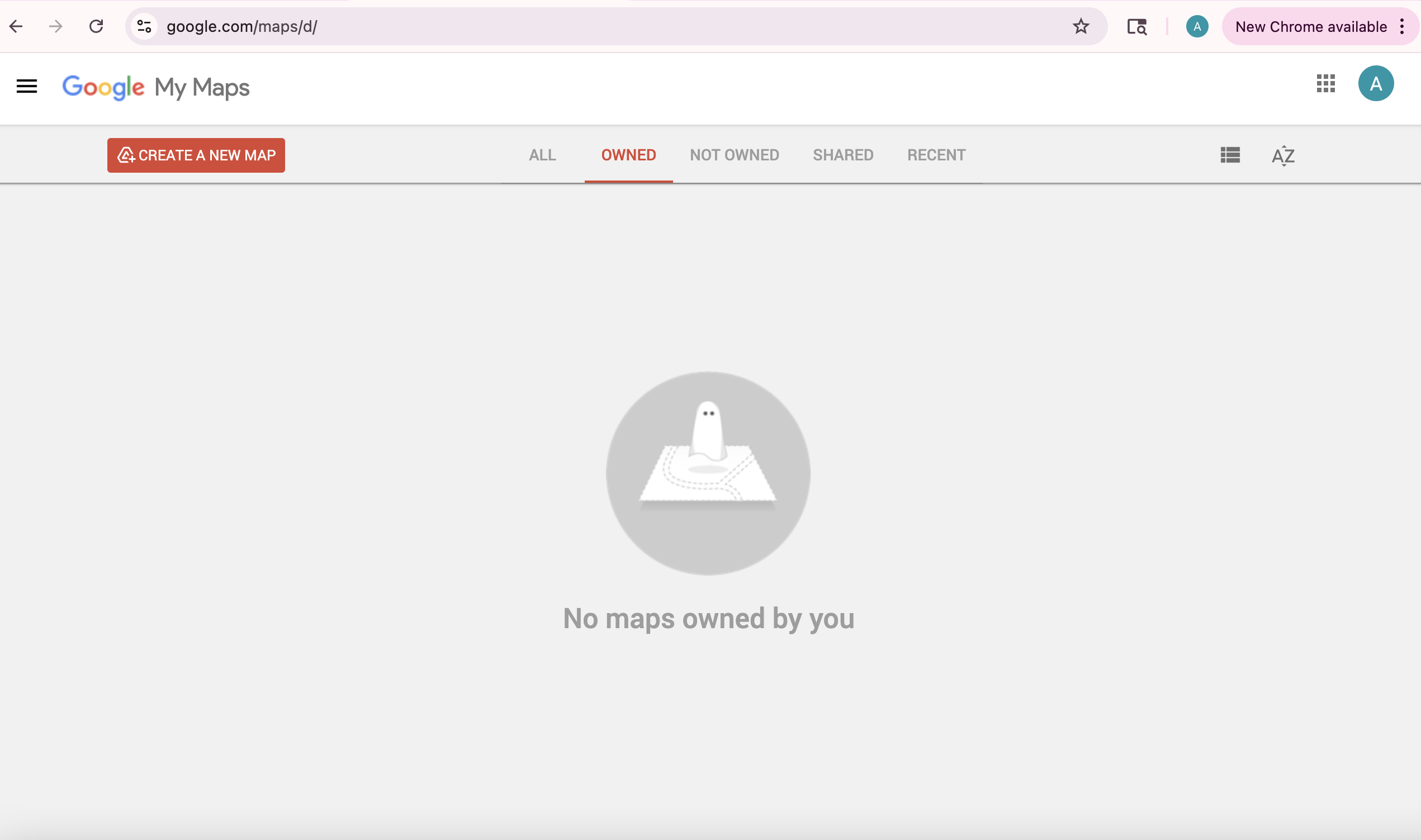
Go to: Google.com/maps/d. Click “Create a new map” in the top-left corner.

Note: This is not the regular Google Maps (maps.google.com). You need Google My Maps to create and customize maps.
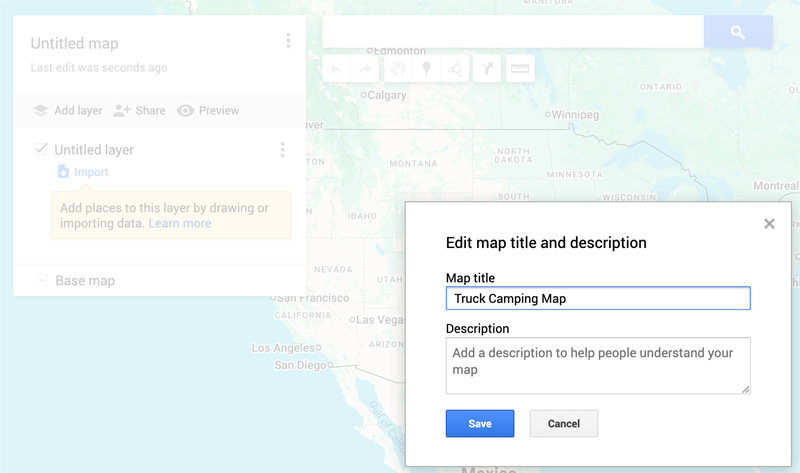
Click on “Untitled map” at the top to name your map. You can add a description too.
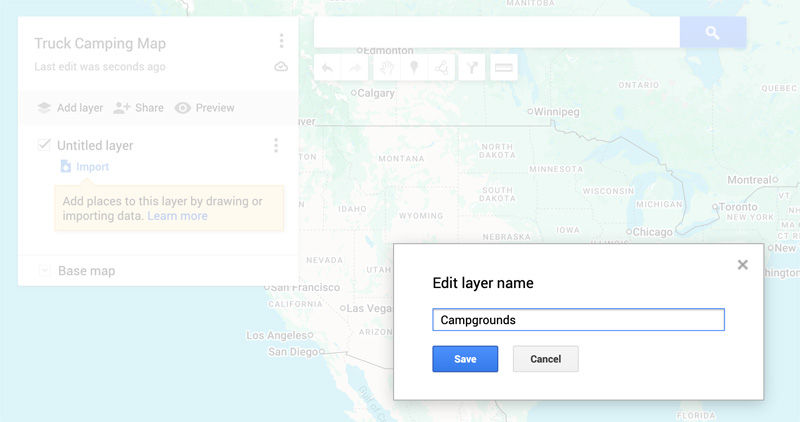
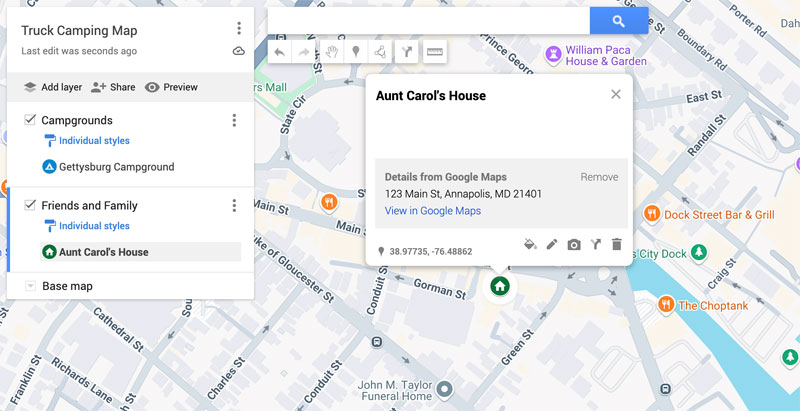
Click on the layer name (e.g., “Untitled layer”) and rename it, such as “Campgrounds”, “Friends and Family”, or “Bucket List Destinations”.
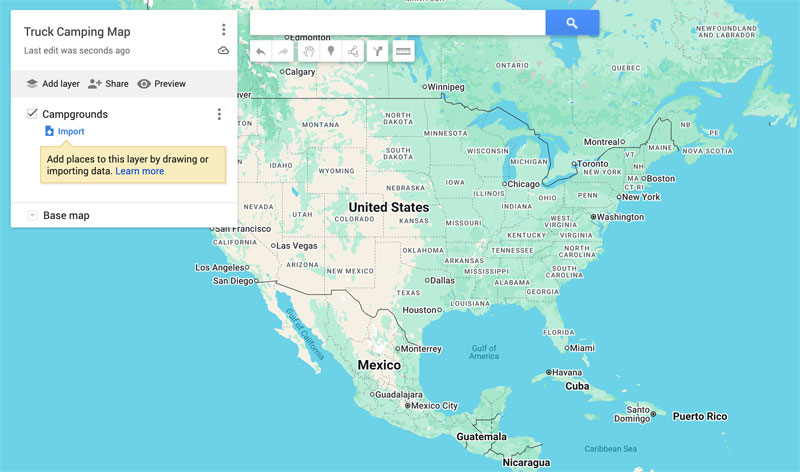
Use the search bar to find a destination (e.g., “Gettysburg Campground”). Click “Add to map.” Then click the paint bucket icon to change the pin style and color. You can also add notes or a personal description, add a photo (from your device or a link), and remove a location with the trash icon.
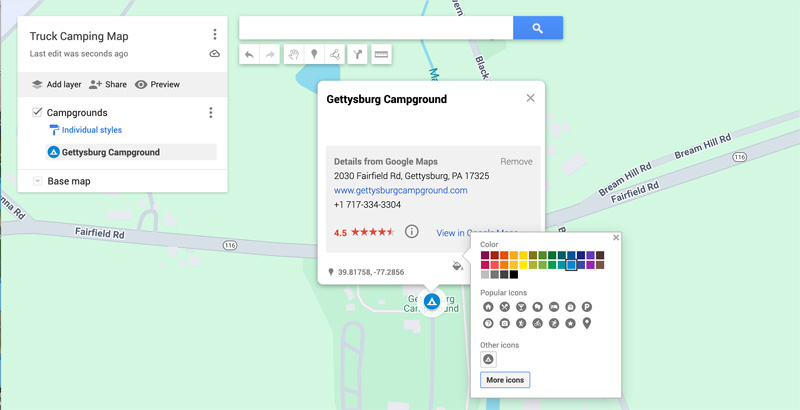
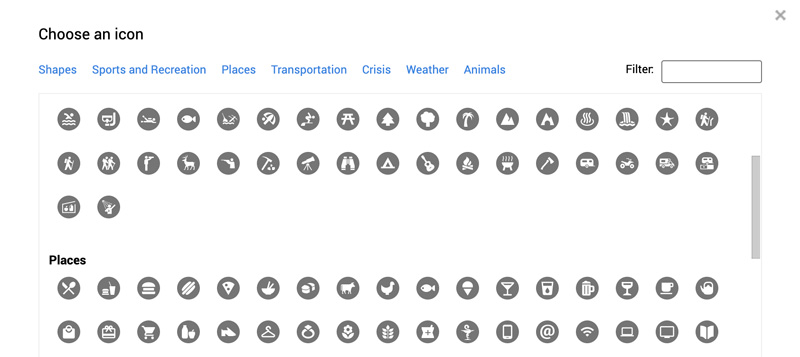
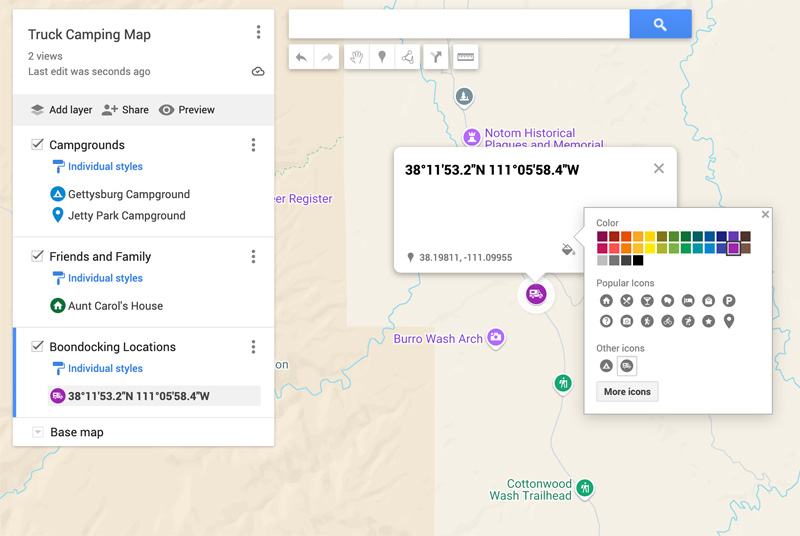
You can go to custom icons to make them more camper-friendly. There’s even one that looks like a truck camper!
Click “Add Layer” to create new categories (e.g., “Free Camping”, “National and State Parks”, “Scenic Routes”, and “Dump Stations”). Each map is limited to 10 layers, so plan carefully!
Tip: Use different icons and colors within the same layer to create subcategories (e.g., different colors for Walmarts vs. Cracker Barrels).
Have a secret boondocking spot without an address? Click the pin icon under the search bar to manually drop a pin. Then add notes and customize it.
Go to: Google.com/maps/d. Log in and select “Owned” or “Shared” to find your map. Click “Open in My Maps” to make edits.
Note: You can’t edit your custom map from regular Google Maps—only via Google My Maps.
You can access your custom map on your phone or tablet in two ways:
1. Google Maps App: Open the app. Tap your profile icon > “Saved” > “Maps” to view custom maps (read-only).
2. Google My Maps (Recommended for Editing): Use a mobile browser (like Safari or Chrome). Go to: Google.com/maps/d. Log in and open your map. This is best for editing and navigating in full view.
Offline Tip: You can download map areas in the Google Maps app for offline use.
Your map can be private (just for you), shared via link (good for friends/family), or public (great for sharing general trip ideas).
For example, our personal map is private because it includes reader and friend addresses. But our Truck Camper Dealer Map is public and linked on our website.
You can start “pin hunting” through TCM lifestyle articles, USA, Canada, the World, past Calendar Contest winners, recommendations from friends, and Harvest Hosts and Boondockers Welcome sites. The more you add, the more useful it becomes.
Plan your layers and categories before you begin. Use color + icon combinations to stretch your 10-layer limit. Add notes and photos to remember details. Regularly update and review your map. Most importantly, use it!
Click here if you want this article as a printable PDF. For more help, check the Google My Maps support page.